
Getting started
Fiscal Fox is a self-hosted accounting workspace for small businesses. This manual walks through every screen for the people who use it day to day. For installing and running Fiscal Fox, see Install and run and Configuration.
Note
Fiscal Fox is built for businesses in the Netherlands 🇳🇱: Dutch VAT, a Dutch chart of accounts, and Belastingdienst rules. Italy 🇮🇹, Spain 🇪🇸, and the United States 🇺🇸 are coming soon.
Every screenshot in this manual shows a fictional demo organization with a year of made-up activity. No real business data appears on this website.
Sign in
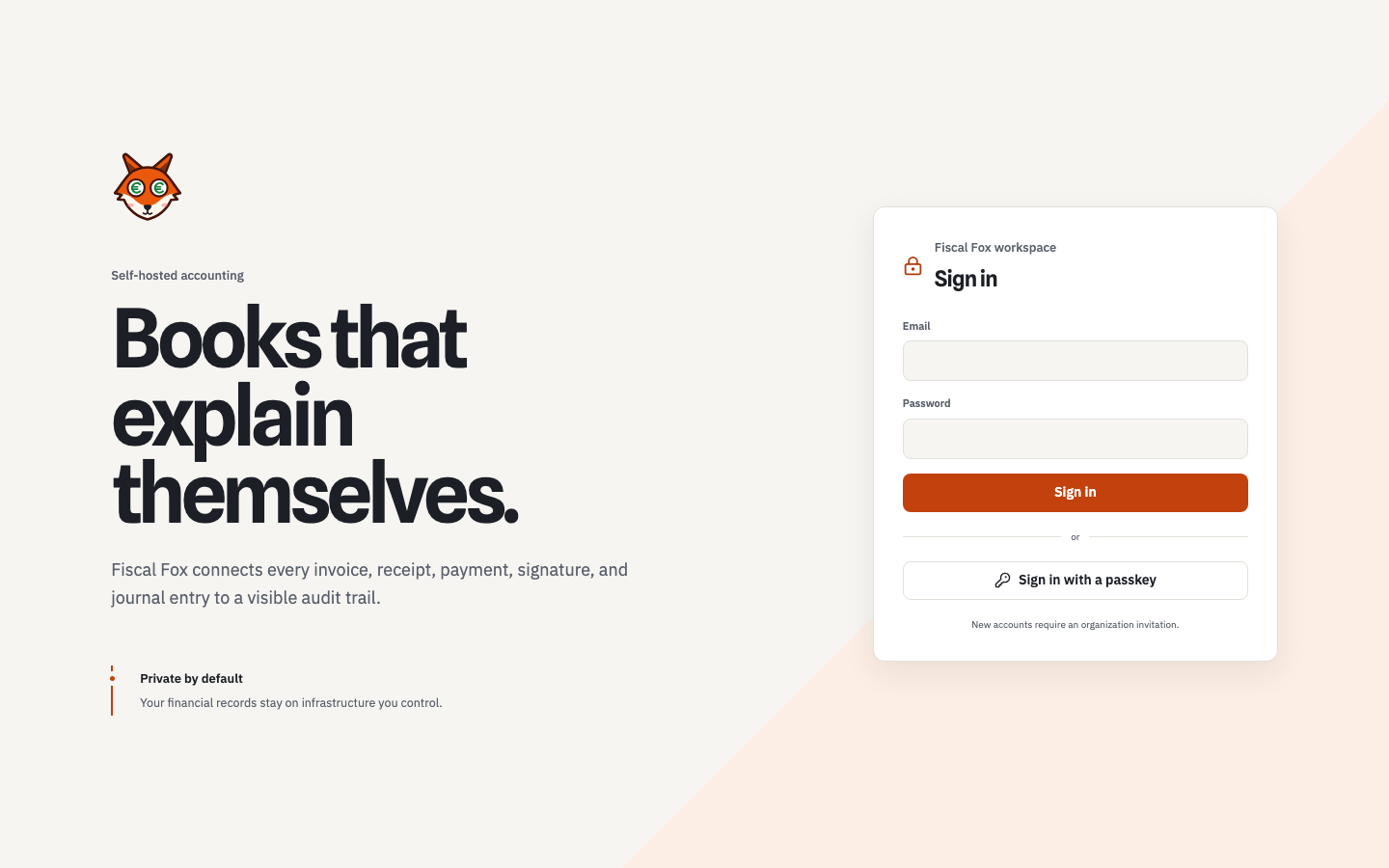
Sign in with your Email and Password, or choose Sign in with a passkey if you have added one.
- First account. On a new installation, Create the first local account opens a sign-up form (Name, Email, Password). Passwords need at least 12 characters.
- Everyone else joins through an invitation. The sign-in card then shows "New accounts require an organization invitation." Ask an owner or admin to invite you from Settings, then open the invitation link they send you.
- Passkeys. Once signed in, select the key icon (Add a passkey) in the top bar to register one for this device.
Create your organization
The first user creates an organization with a Trading name, an optional Legal name, and a Business email. New organizations start with Dutch defaults: country NL, currency EUR, time zone Europe/Amsterdam, a Dutch chart of accounts, Dutch VAT codes, and monthly fiscal periods.
If you belong to more than one organization, Select an organization lists them with your role, country, and currency. Each organization keeps its financial data separate. Switch later with the organization selector at the top of the sidebar.
Find your way around
The sidebar groups the screens:
| Group | Screens |
|---|---|
| Dashboard | |
| Everyday | Sales, Expenses, Time and Trips, Contacts |
| Money and tax | Payments, VAT, Reports |
| More | Contracts, Bookkeeping, Import and export, Activity log |
| Settings |
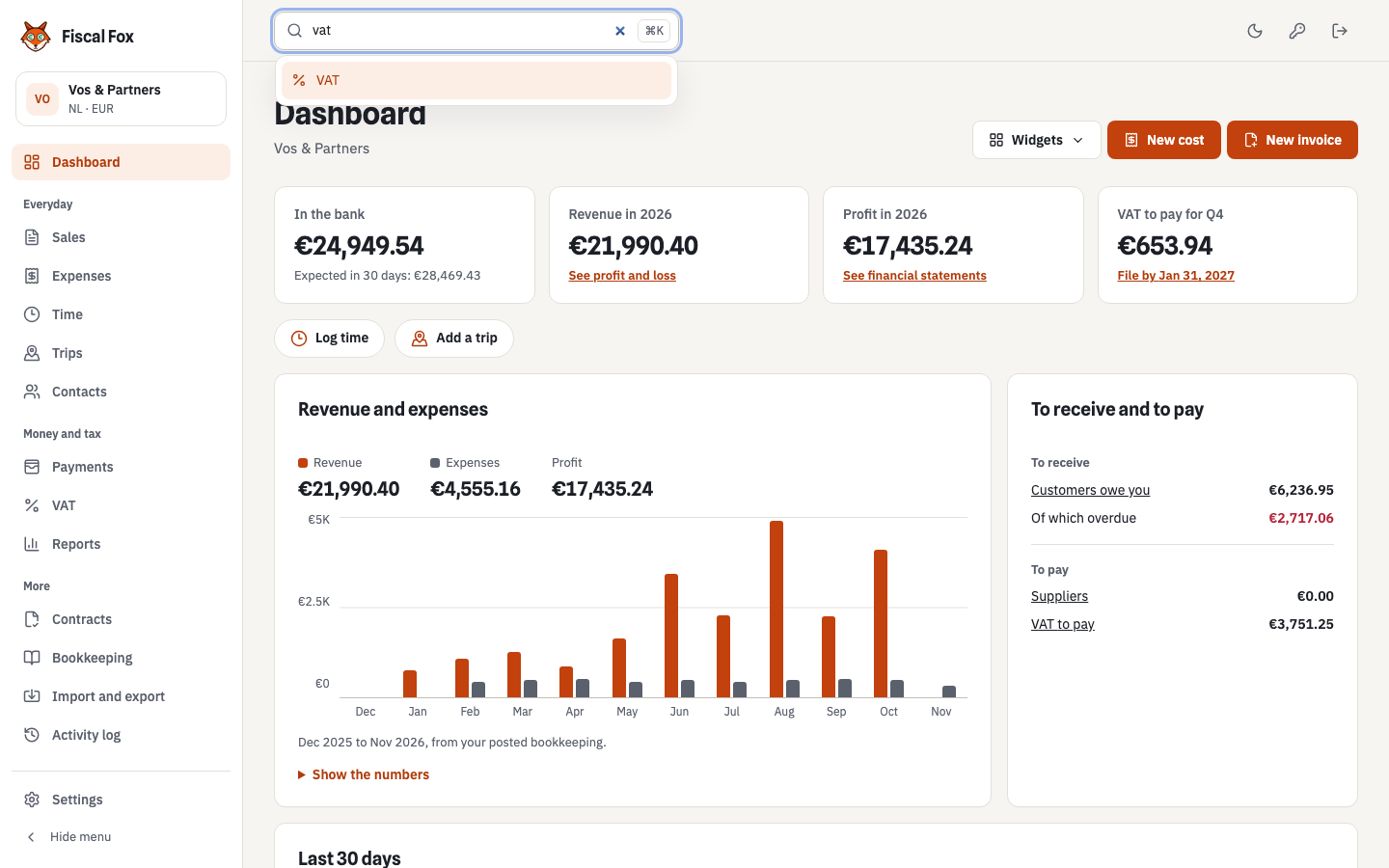
- Jump to a page. Press ⌘ K on a Mac or Ctrl K elsewhere, type a page name or a keyword (Dutch terms such as "btw" work too), pick a result with the arrow keys, and press Enter. Esc clears the search.
- Light or dark. The moon or sun icon in the top bar switches the theme. Your choice is remembered in this browser.
- Background tasks. When exports, emails, or other background work are running or have failed, the top bar shows a counter that opens the Activity log.
- Smaller screens. Hide menu collapses the sidebar. On narrow windows, Open navigation shows the menu as a drawer.
- Sign out with the arrow icon at the end of the top bar.
Roles
Each member of an organization has one role. The screens only show the actions your role allows.
| You can | Owner | Admin | Accountant | Member | Viewer |
|---|---|---|---|---|---|
| See contacts, documents, and the ledger | Yes | Yes | Yes | Yes | Yes |
| Create and edit contacts | Yes | Yes | No | Yes | No |
| Create sales documents, expenses, time, trips | Yes | Yes | No | Yes | No |
| Approve expenses, time, and trips | Yes | Yes | Yes | No | No |
| Post and reverse journals, lock periods | Yes | Yes | Yes | No | No |
| Export reports | Yes | Yes | Yes | No | No |
| See the audit log | Yes | Yes | Yes | No | No |
| Manage payments and refunds | Yes | Yes | No | No | No |
| Manage members and organization-wide AI options | Yes | Yes | No | No | No |
Accountants can soft-lock a fiscal period; only owners and admins can lock it fully or reopen it.
What Fiscal Fox does not do
Fiscal Fox prepares numbers and files; you hand them off. It does not connect to your bank, transmit Peppol messages, or file tax returns. XAF and UBL files are exchange files for your accountant or access point.
How Fiscal Fox books documents and works out the VAT return is described in Accounting rules.