
Payments
Payments lists online card payments from customers, the fees Stripe kept, and the invoices they paid. Owners and admins can issue refunds here.
Connect Stripe
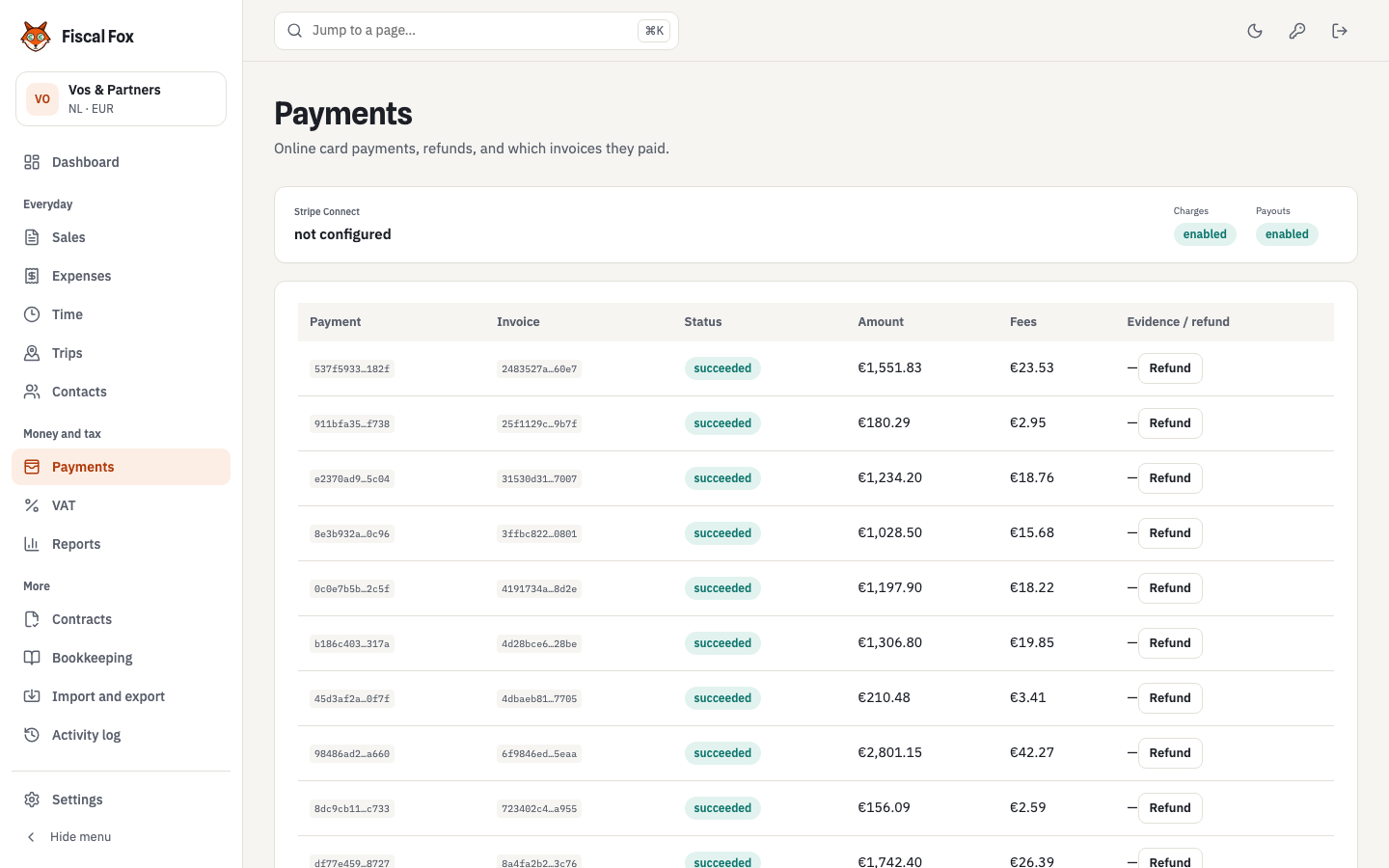
Fiscal Fox takes card payments through your own Stripe account using Stripe Connect. The strip at the top shows whether Stripe is configured and whether Charges and Payouts are enabled. If charges are still disabled, select Continue onboarding to finish setting up the account at Stripe.
Your administrator must configure the Stripe credentials on the server first; see Integrations.
Follow payments
Each row shows the payment, the invoice it paid, its status, the amount, and the Stripe fees. Successful payments link to Stripe's Receipt; failed ones show the reason. Payments and their Stripe fees are booked automatically, so the bookkeeping stays in step with Stripe.
Refund a payment
- Select Refund on a succeeded or partly refunded payment.
- Enter the Amount, or leave it blank to refund everything that is left.
- Optionally choose a Reason: duplicate, fraudulent, or requested by customer.
- Select Issue refund.
The refund is made through Stripe and the list updates when Stripe confirms it.
Who can do this
Only owners and admins can open this page. Other roles see "Payment access is restricted." See Roles.