
Import and export
Import and export brings records in from a spreadsheet and keeps every file Fiscal Fox has generated for you, such as report exports and UBL e-invoices.
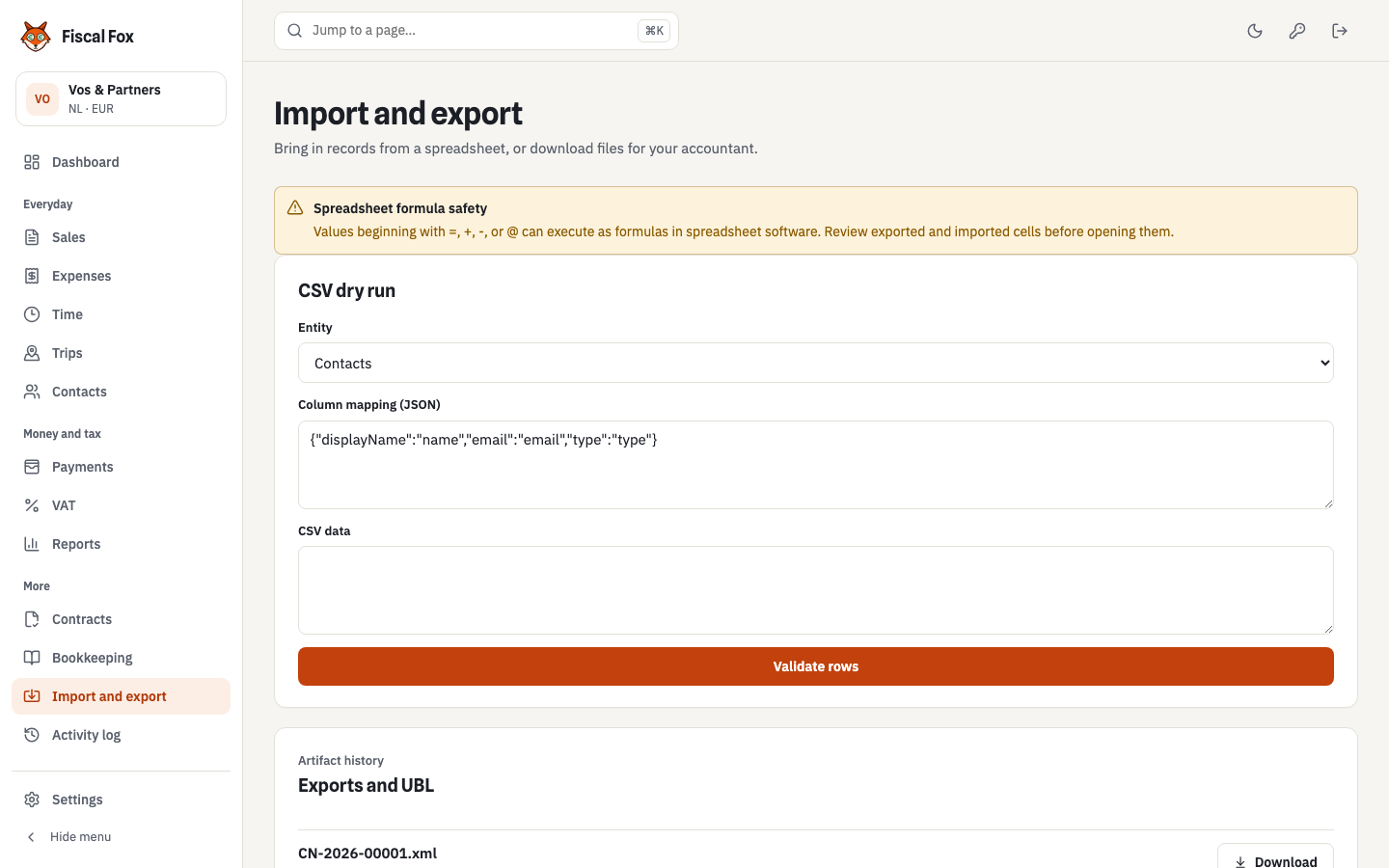
Import from CSV
Imports always start as a dry run, so nothing is saved until you have checked the result.
- Under CSV dry run, choose the Entity to import: Contacts, Catalog items, Time entries, or Trips.
- In Column mapping (JSON), map Fiscal Fox fields to your CSV column
headers. For example,
{"displayName":"name","email":"email","type":"type"}reads the contact's display name from thenamecolumn. - Paste the file contents into CSV data.
- Select Validate rows. Each row shows whether it is valid and, if not, why.
- Select Apply valid rows to import the rows that passed.
Changing the entity, mapping, or data clears the preview, so you always apply what you validated.
Warning
Values beginning with =, +, -, or @ can run as formulas in
spreadsheet software. Review imported and exported cells before opening them.
Exports and UBL
Exports and UBL lists every generated file with its name, type, size, and SHA-256 fingerprint. Select Download to fetch one again. Files are immutable: the fingerprint lets you or your accountant prove a file has not changed.
Files appear here when you export a report from Reports or finalize an invoice or credit note in Sales.
Who can do this
Owners, admins, and members can import. See Roles.