
Settings
Settings shows your organization details and lets owners and admins manage team members and how documents are read.
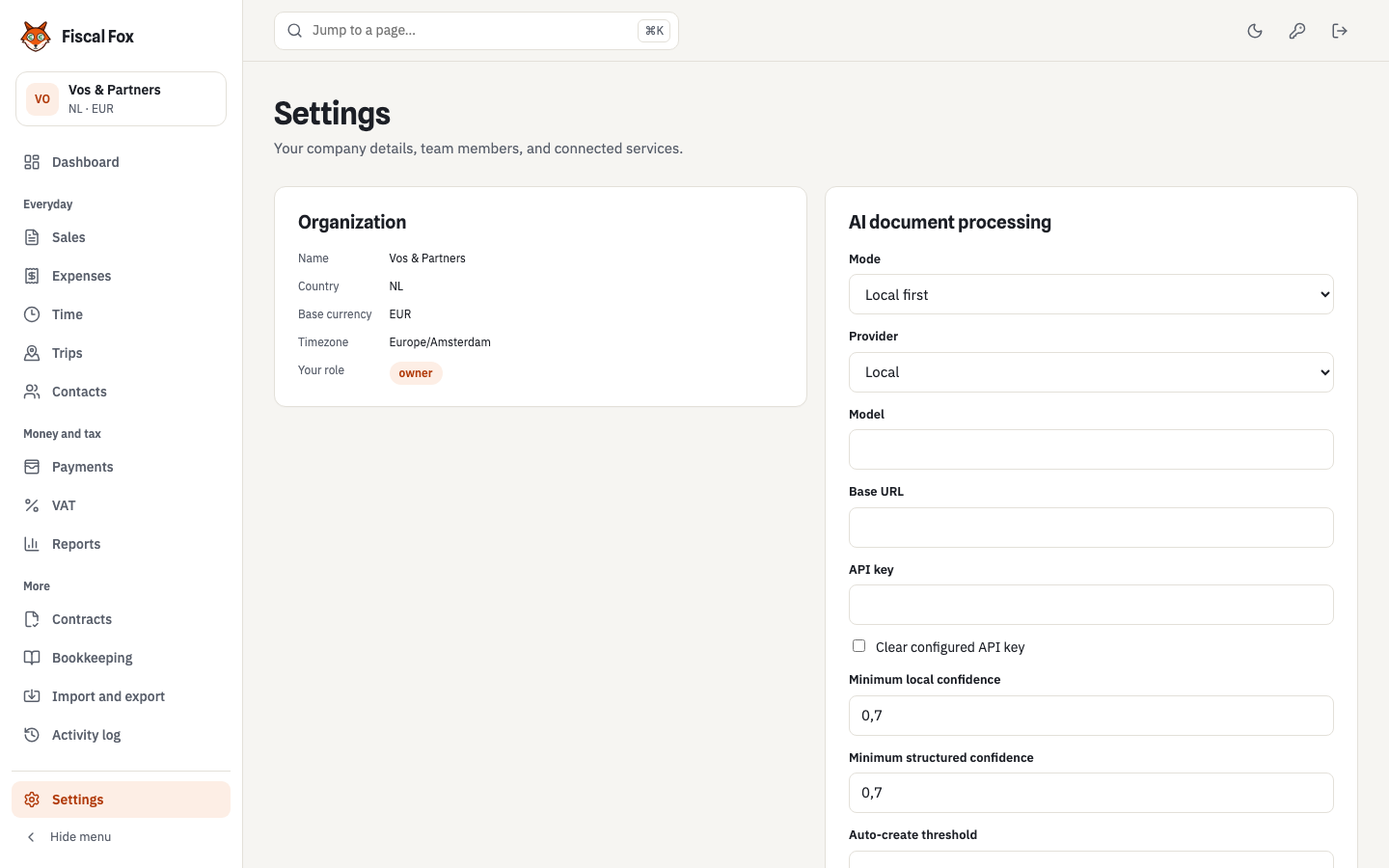
Organization
The Organization card shows the name, country, base currency, time zone, and your role.
AI document processing
These options decide how Expenses reads receipts. Only owners and admins can change them.
| Setting | What it does |
|---|---|
| Mode | Local first tries local text recognition before any provider; Provider first asks the provider first. |
| Provider | Local, OpenAI compatible, or Copilot. |
| Model, Base URL, API key | Connection details for the provider. Leave the key blank to keep the current one, or tick Clear configured API key. |
| Minimum local confidence, Minimum structured confidence | How sure the reader must be (0 to 1) before its result is trusted. |
| Auto-create threshold | Optional. When a reading with a date and a positive total is at least this sure (0 to 1), the expense is posted without review. Leave empty to review every receipt. |
To save, tick I acknowledge the privacy warning for this provider configuration and select Save AI settings.
Caution
With a remote provider, receipt text or images can leave your servers. Check the provider's retention, training, and residency terms and get the required privacy approval first. See Integrations.
Members and invitations
The Members list shows each person, their email, role, and when they joined.
Invite someone
- Select Invite member.
- Enter their Email and choose a Role: Admin, Accountant, Member, or Viewer.
- Select Create invitation.
Fiscal Fox shows an invitation link that expires. Send it to the person through a channel you trust. They open it, create their account or sign in, and join the organization.
Change a role
Use the Role selector in a member's row. The roles you can assign depend on your own role. See Roles for what each role can do.
Other connections
Stripe, DocuSign, calendars, maps, and email are set up on the server by your administrator; see Configuration and Integrations. Once Stripe is configured, finish onboarding from Payments.